Essential Smartphone Setup Guide for Seniors and Beginners
Setting up a smartphone for older adults or tech beginners requires thoughtful adjustments to enhance usability and safety. This guide provides practical steps for simplifying both iPhone and Android interfaces, from customizing home screens and increasing font sizes to configuring emergency contacts and security settings. By implementing these modifications, you can transform a standard smartphone into an accessible, user-friendly device that empowers your loved ones to stay connected confidently and securely.
Smartphones are powerful tools for communication and connection, but their complexity can be daunting for seniors or those new to technology. With a few strategic adjustments, you can transform a standard iPhone or Android device into a more accessible and manageable tool. This guide outlines essential setup steps to simplify the user experience, prioritize safety, and build confidence for less tech-savvy users, drawing on expert recommendations from sources like WIRED.

Foundational Setup for Security and Simplicity
Before diving into customization, establishing basic security and a clean interface is crucial. A secure, uncluttered phone is easier to navigate and protects personal information.
Configure the Lock Screen
Always enable lock screen security. The ideal method is biometric authentication like fingerprint or face unlock, as it balances security with convenience. If these aren't suitable, set up a memorable PIN, password, or pattern. On an Android device, navigate to Settings > Security and privacy > Device unlock > Screen lock. On an iPhone, go to Settings > Face ID & Passcode or Touch ID & Passcode to configure this essential first layer of protection.
Simplify the Home Screen
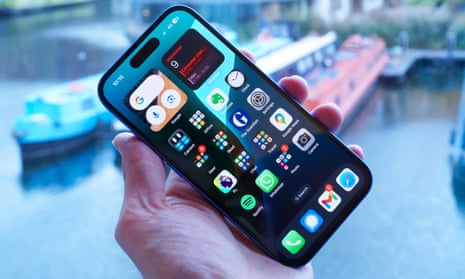
A cluttered home screen is confusing. Remove or uninstall apps that won't be used regularly to create a clean, focused interface. On Android, tap and hold an icon and drag it to the Uninstall or Remove option. On iPhone, tap and hold the home screen until icons wiggle, then tap the X to delete apps or drag them to reorganize. A minimalist home screen reduces cognitive load and makes essential functions easier to find.
Enhancing Accessibility and Usability
Tailoring the phone's visual and auditory settings can significantly improve the experience for users with changing vision or hearing.
Increase Text Size for Better Readability
Larger text is one of the most helpful adjustments. On Android, adjust this by going to Settings > Display and touch > Display size and text and dragging the slider. You can also access this via Settings > Accessibility. On iPhone, navigate to Settings > Display & Brightness > Text Size. For even larger text, go to Settings > Accessibility > Display & Text Size > Larger Text. This simple change makes menus, messages, and web content much easier to read.
Adjust Sounds and Notifications
Ensure ringtones and alerts are audible and recognizable. Set the volume to an appropriate level and choose distinct, familiar sounds. On Android, manage these in Settings > Sound and vibration. On iPhone, go to Settings > Sounds & Haptics. For users who are hard of hearing, iPhones offer an LED Flash for Alerts option in Settings > Accessibility > Audio & Visual, providing a visual cue for incoming notifications.
Adding Practical Shortcuts and Safety Features
Streamlining common tasks and integrating safety nets are key to creating a supportive device.
Create Direct Contact Shortcuts
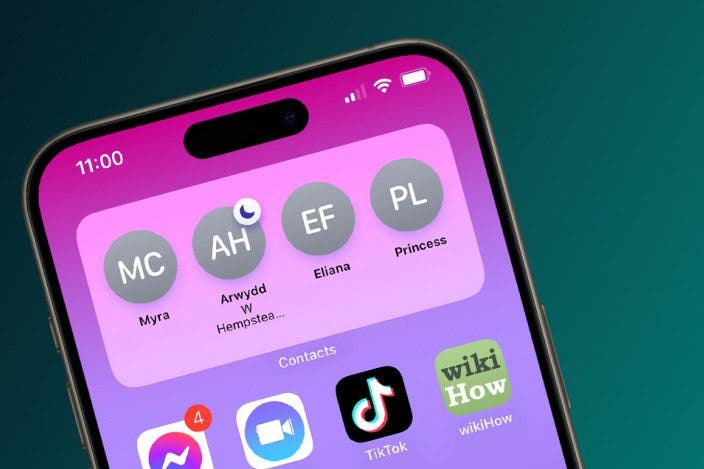
Place one-tap shortcuts for calling or messaging frequent contacts directly on the home screen. On Android, use widgets: tap and hold the home screen, select Widgets, go to the Browse tab, find Contacts, and choose Direct dial or Direct message. On iPhone, use the Shortcuts app to create a new shortcut with the Phone or FaceTime action, select a contact, and then Add to Home Screen. This eliminates the need to search through contacts or an address book.
Set Up Emergency Information and SOS
Medical and emergency information can be vital. On Android, add details like blood type and medications in Settings > Safety and emergency > Medical information. On iPhone, use the Health app > Medical ID. Configure emergency SOS features: on many Android phones (like Google Pixels), find this in Settings > Safety & Emergency > Emergency SOS (often triggered by pressing the power button five times). On iPhone, enable Call with 5 Button Presses in Settings > Emergency SOS. This feature calls emergency services and alerts designated contacts.
Advanced Considerations for Peace of Mind
For added security and support, consider these additional configurations, especially if the user will be browsing the web or using apps.
Enable Phone Tracking
With the user's permission, enable location sharing to help find a lost phone or check on a loved one's whereabouts. On Android, use Google's Find My Device or share location indefinitely via the Google Maps app (Profile > Location sharing > New share). On iPhone, use the Find My app (People tab > Share My Location). This provides a safety net for both the device and the person using it.
Discuss Basic Security
Have a conversation about common online threats like phishing scams. Consider installing a reputable security app such as Malwarebytes (available for both Android and iPhone) to provide an additional layer of protection against malware and malicious websites. While not a substitute for cautious behavior, it acts as a helpful safety net.
The Final Step: A Hands-On Tutorial
The most important step is a patient, hands-on tutorial. After configuring the phone, sit down with the user and demonstrate how to perform core tasks: answering a call, sending a text, opening a key app, and using the shortcuts you've set up. Let them practice while you observe. This practical guidance builds confidence and ensures they feel comfortable using their newly simplified device independently.