The Ultimate Guide to Choosing the Best Monitor for Your Mac Mini
The Mac Mini is Apple's most affordable desktop computer, offering incredible value and performance. However, unlike an iMac or MacBook, it requires an external monitor to complete your workstation setup. This guide explores the key factors to consider when selecting a monitor for your Mac Mini, including resolution, size, adjustability, and image quality. We'll examine how many displays different Mac Mini models can support and compare the Mac Mini to the iMac for cost-effectiveness. Whether you're a content creator, professional, or casual user, finding the right monitor is essential for maximizing your Mac Mini experience.
The Mac Mini represents Apple's most budget-friendly entry point into the macOS ecosystem, delivering impressive performance in a compact form factor. However, its defining characteristic—the lack of a built-in display—means your setup is incomplete without a quality monitor. Choosing the right screen is not just about connecting a cable; it's about matching Apple's renowned display quality and ensuring a seamless, productive workflow. This guide will walk you through everything you need to know to select the perfect monitor for your Mac Mini, from technical specifications to practical considerations.

Key Considerations When Choosing a Mac Mini Monitor
While virtually any monitor with an HDMI or USB-C port will work with a Mac Mini, selecting the right one enhances your overall experience. Apple users are accustomed to high pixel density and excellent color reproduction, so your monitor choice should reflect these expectations. Here are the four critical elements to evaluate.
Size, Resolution, and Refresh Rate
Monitor size and resolution are intrinsically linked, especially in the Apple ecosystem where pixel density is paramount. For sharp, clear text and images, a 4K resolution (3840 x 2160) is the practical minimum for most users. Popular sizes are 27-inch and 32-inch displays, with 34-inch ultrawide options offering an expansive, immersive workspace with a 21:9 aspect ratio. The refresh rate, measured in Hertz (Hz), determines how smoothly motion appears on screen. While 60 Hz is standard, a 120 Hz refresh rate—like that found on MacBook Pro models—provides noticeably smoother animations and is beneficial for gaming. Higher resolutions like 5K or 6K on larger monitors push pixel density closer to that of Apple's laptops, offering exceptional sharpness.
Adjustability and Ergonomics
Ergonomics are crucial for long-term comfort and health. Unlike many consumer monitors, Apple's own displays, like the Pro Display XDR, famously charge extra for adjustable stands. A good monitor should allow for height adjustment so the top of the screen aligns with your eye level. Additional features like tilt, swivel, and pivot (for vertical orientation) provide flexibility, especially in multi-monitor setups. If a monitor's stand lacks these features, you may need to invest in a separate monitor arm or stand, which is an important factor in your total cost calculation.
Ports and Connectivity
The latest M4 Mac Mini comes with three Thunderbolt 4 ports (Thunderbolt 5 on the M4 Pro model), one HDMI port, and an Ethernet jack. Your monitor's ports will determine your connection method. HDMI is universal, but a USB-C port with DisplayPort Alt Mode allows you to connect directly to a Thunderbolt port, potentially simplifying cable management and enabling features like USB hub passthrough. Since the Mac Mini lacks built-in USB-A ports, a monitor with a USB hub can be a valuable addition for connecting peripherals like keyboards, mice, and external storage.
Image Quality for Professional Work
For photographers, videographers, and designers, image quality is non-negotiable. Key metrics include peak brightness (measured in nits), color accuracy (Delta-E values), color coverage (sRGB, AdobeRGB, DCI-P3), and contrast ratio. While traditional IPS panels offer good color accuracy, technologies like mini-LED and OLED provide superior contrast with true blacks and significantly better performance for High Dynamic Range (HDR) content, bringing games and movies to life with more vibrant highlights and deeper shadows.
How Many Monitors Can Your Mac Mini Support?
The number of external displays a Mac Mini can drive depends on the specific chip inside. This is a critical consideration for users planning multi-monitor workstations.
- M4 Mac Mini: Supports up to three external displays. Configuration options include one 8K display at 60 Hz, or two 6K displays at 60 Hz plus one additional 4K display.
- M4 Pro Mac Mini: Also supports three displays, with enhanced bandwidth allowing for configurations like three 6K displays at 60 Hz or three 4K displays at 144 Hz.
- Standard M2 Mac Mini: Supports up to two displays (one 6K and one 4K at 60 Hz).
- M2 Pro Mac Mini: Supports up to three displays (two 6K and one 4K).
For multiple monitor setups, you will typically need to use the Thunderbolt ports on the Mac Mini, as the HDMI port has specific limitations when used in combination with others.
Mac Mini vs. iMac: The Cost-Benefit Analysis
If you haven't purchased a desktop Mac yet, you might weigh the Mac Mini against the all-in-one iMac. The base M4 Mac Mini starts at $599, while the similarly specced 24-inch M4 iMac starts at $1,299—a $700 difference. The iMac includes a beautiful 4.5K display, a 1080p webcam, and a six-speaker system. However, for less than $700, you can pair a Mac Mini with a quality 27-inch 4K or 5K monitor and add third-party peripherals, often resulting in a more powerful and flexible setup for a similar or lower total cost. The Mac Mini offers superior upgradeability and the freedom to choose your perfect display.

Top Monitor Recommendations for the Mac Mini
Based on performance, value, and features, here are standout monitors that pair excellently with a Mac Mini.
Best Overall Value: Dell 27 Plus 4K Monitor (S2725QS)
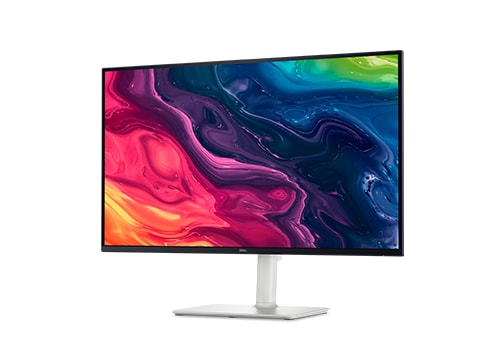
For most users, the Dell 27 Plus 4K represents the sweet spot. It combines a sharp 4K resolution with a 120 Hz refresh rate—a feature once reserved for high-end gaming monitors—at a frequently discounted price point around $230. It's the perfect companion for the budget-conscious Mac Mini, though it lacks a USB hub, so you'll rely on the Mac's ports.
For Ultimate Sharpness: LG UltraFine Evo 6K Monitor
The LG UltraFine Evo 6K offers a 32-inch 6K display, achieving a pixel density of 224 PPI that rivals Apple's laptops. Its Nano IPS Black panel delivers exceptional color accuracy and coverage. With built-in speakers rivaling Apple's Studio Display and a sleek design, it's a premium choice for professionals, though its 60 Hz refresh rate and limited stand adjustability are considerations.
The Apple Ecosystem Choice: Apple Studio Display
The Apple Studio Display offers the most seamless integration, featuring a 5K retina display, a studio-quality 12MP webcam with Center Stage, and a impressive six-speaker sound system. However, its high price and the extra cost for a height-adjustable stand make it a significant investment. It's designed to complement the Mac Studio but can complete a high-end Mac Mini setup for users who prioritize design and ecosystem harmony.
Essential Accessories to Complete Your Setup
Beyond the monitor, a few key accessories can transform your Mac Mini into a powerhouse workstation. The Satechi Mac Mini M4 Hub Stand adds forward-facing USB-A ports and an SD card reader while neatly housing the computer. For input, the Logitech MX Master mouse and a mechanical keyboard like the Keychron V3 Max enhance productivity and comfort. A quality webcam, such as the Logitech Brio 505, is essential for video calls, and a monitor stand or arm can solve ergonomic issues if your display lacks adjustability.
Selecting the right monitor for your Mac Mini is a balance of budget, performance needs, and personal workflow. By prioritizing resolution and pixel density, ensuring proper ergonomics, and considering future expandability, you can build a desktop setup that leverages the full potential of Apple's most versatile and affordable desktop. Whether you choose a budget-friendly 4K display or invest in a professional 6K screen, the right monitor will ensure your Mac Mini serves as a capable and enjoyable hub for work and creativity for years to come.